


Working from a café sounds great until the first video call starts.
You find a table, open your laptop, order a coffee, connect to Wi-Fi and settle in. Then the espresso machine starts running behind you. Someone pulls a chair across the floor. A group at the next table starts talking. Plates and cups are moving around, music is playing in the background, and every few minutes someone walks past your table.
Suddenly, the quiet workspace you imagined is anything but quiet.
For casual browsing or answering emails, that may not matter much. But when you have an important work meeting, interview, client call, online class or presentation, background noise can quickly become a problem. The people on the other end of the call may struggle to hear you clearly, and you may spend the entire conversation worrying about what they can hear instead of concentrating on what they are saying.
The good news is that you do not necessarily have to leave the café every time you need to take a call.
With the right setup, you can make video calls from a noisy café considerably easier. Your choice of table, headset, microphone position, computer settings and audio software can all make a difference. One tool worth considering for this kind of situation is Krisp AI, a desktop application designed to remove background noise from calls in real time.
Krisp’s Noise Cancellation works on the audio going both ways during calls. According to Krisp, it can remove noise coming from your side of the conversation as well as noise coming from other participants. Krisp also offers Background Voice Cancellation, which is designed to cancel background voices while keeping the primary speaker’s voice.
That makes Krisp particularly relevant for people who regularly work from cafés, airports, hotels, coworking spaces and other places where complete silence is not always possible.
Here is how to make the most of a café setup for your next video call.
Before talking about software, start with something simple: where you sit.
Noise cancellation technology can help, but it is still easier to have a good call when you are not sitting directly beside the loudest source of noise in the café.
When you enter, take a few seconds to listen to the room.
You may notice that one corner is much quieter than another. A table near a wall may have less foot traffic than a table beside the entrance. A seat farther away from the coffee machine may be noticeably quieter. A table in the back of the café may also have fewer conversations happening around it.
These small decisions can make your call easier.
Try to avoid sitting directly beside:
Espresso machines
Blenders
Speakers
Entrances and exits
Busy service counters
Kitchens
Groups of people having loud conversations
High-traffic walkways
You do not need a completely silent environment. That is unrealistic in many cafés. The goal is simply to reduce the amount of noise reaching your microphone before your call even begins.
A wall or booth behind you can also be useful because it may reduce the number of people moving directly behind your chair. If you are going to be on camera, consider the background as well. A less busy background can make the call feel more professional even when you are working from a public place.
The best café setup is therefore a combination of physical positioning and audio technology.
Your laptop’s built-in microphone can work for basic calls, but it is not always the best choice when you are sitting in a busy café.
A headset with a microphone positioned relatively close to your mouth can make it easier for your voice to reach the microphone clearly. It also gives you a more consistent setup than relying on a microphone several inches away from you.
Krisp’s own recommendations explain that audio quality depends on the audio it receives, so the physical setup still matters. Krisp recommends preparing your setup before a call, speaking clearly at a natural pace, checking microphone volume and making sure the device can handle real-time processing.
For people who regularly work remotely, a simple wired USB headset with a boom microphone can be a practical choice. Krisp’s device recommendations note that a wired USB headset with a boom microphone and no onboard processing can provide reliable results, although other headsets, including Bluetooth models, can also be used.
You do not necessarily need an expensive studio microphone to make a café call work.
What matters is having a microphone that can capture your voice consistently and positioning it appropriately.
Microphone positioning is easy to overlook.
If your microphone is too far away, you may compensate by speaking louder. That is not always ideal, especially when you are sitting in a public place.
Instead, position the microphone so that it can pick up your voice clearly without being directly in the way of your mouth.
If you are using a headset with a boom microphone, place it according to the headset manufacturer’s recommendations. Before an important call, make a short recording or test call and listen to the result.
This is also a good time to check your microphone level.
Krisp recommends making sure the microphone volume is high enough and notes that automatic gain control or volume normalization can change your input level. Krisp provides a “Lock at optimal level” option for its microphone volume when automatic changes are causing problems.
The goal is not to make your voice extremely loud. You want a stable, clear signal that your call software and Krisp can process effectively.

This is where Krisp AI can become especially useful.
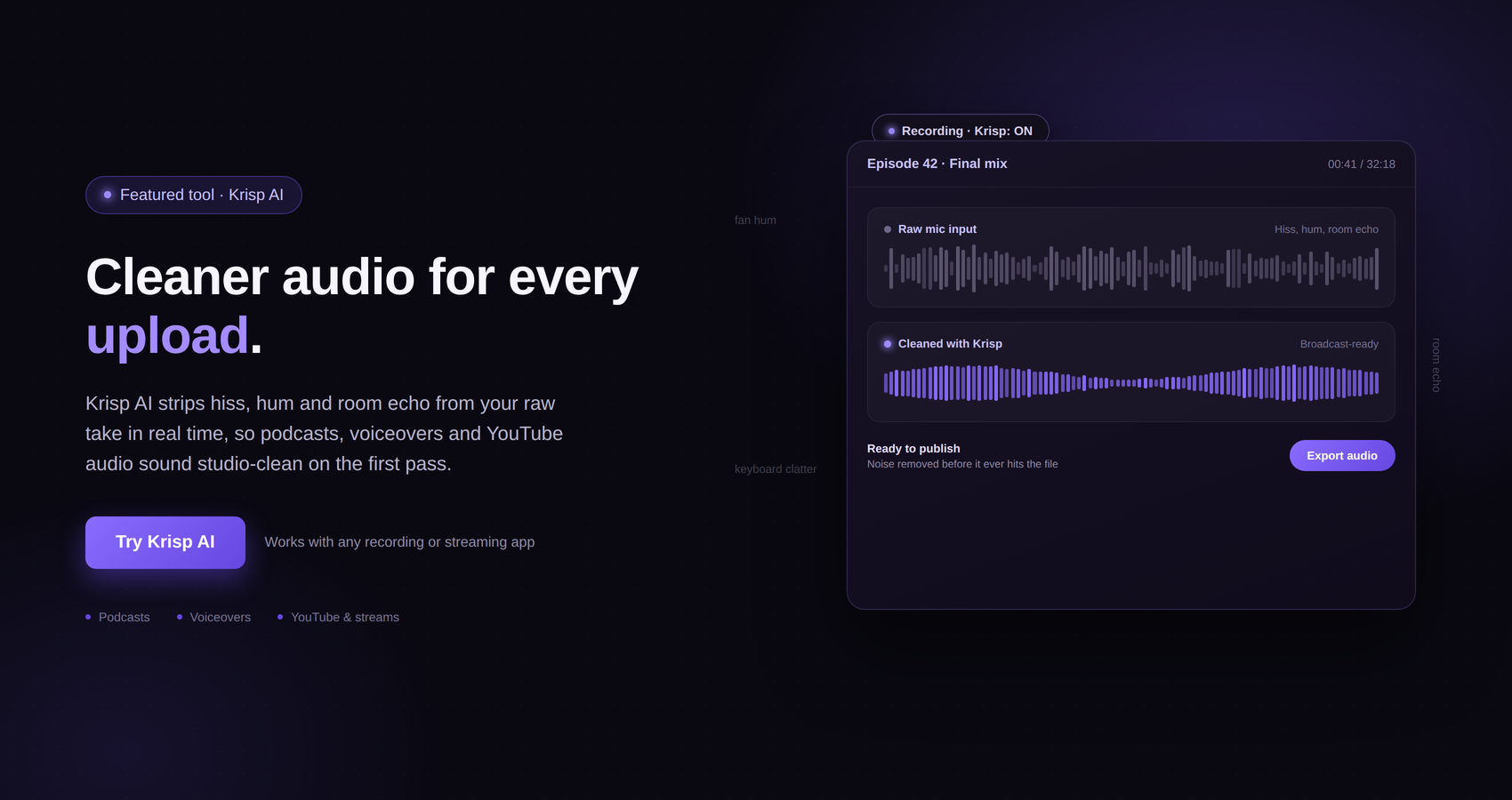
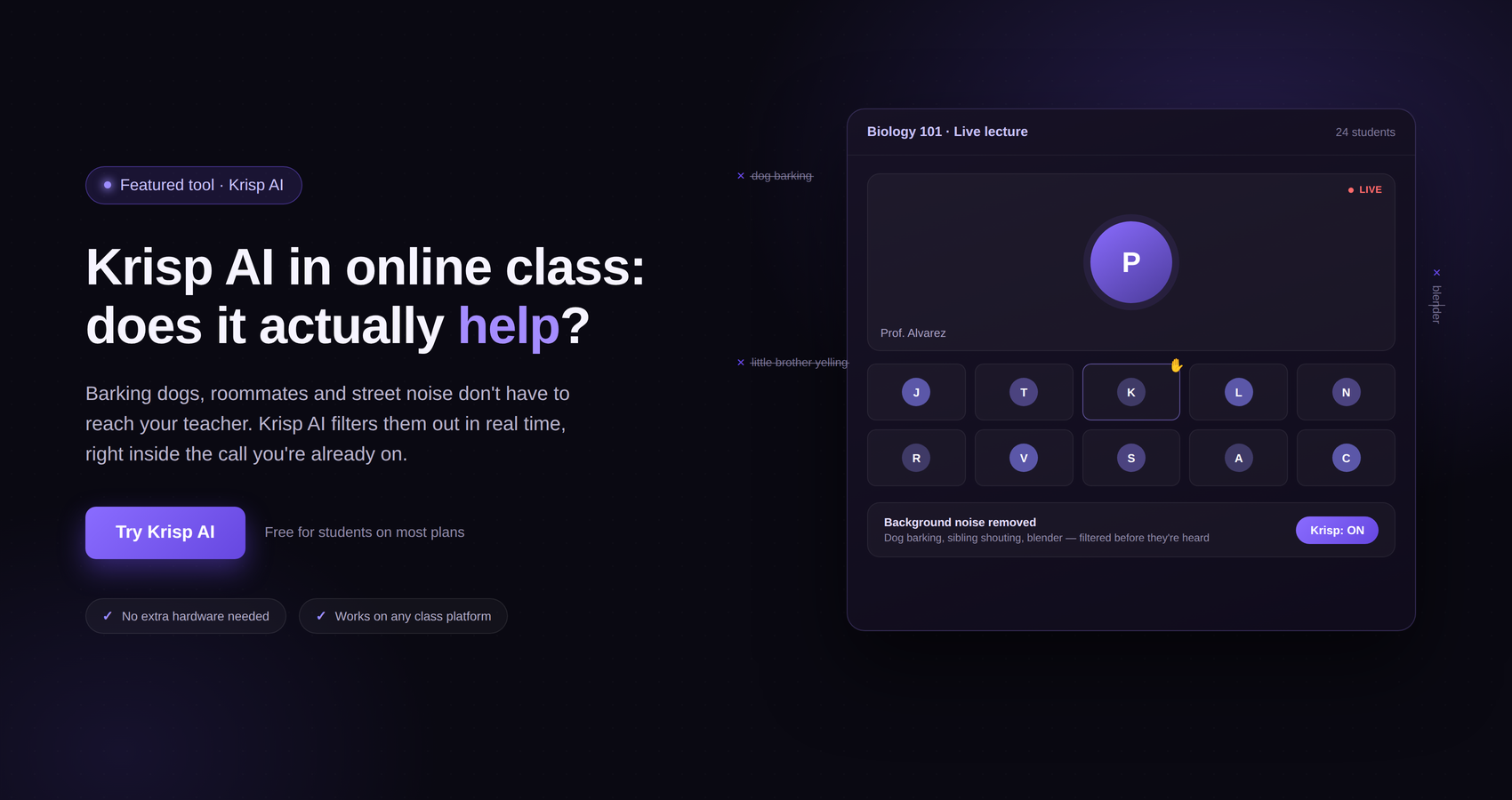
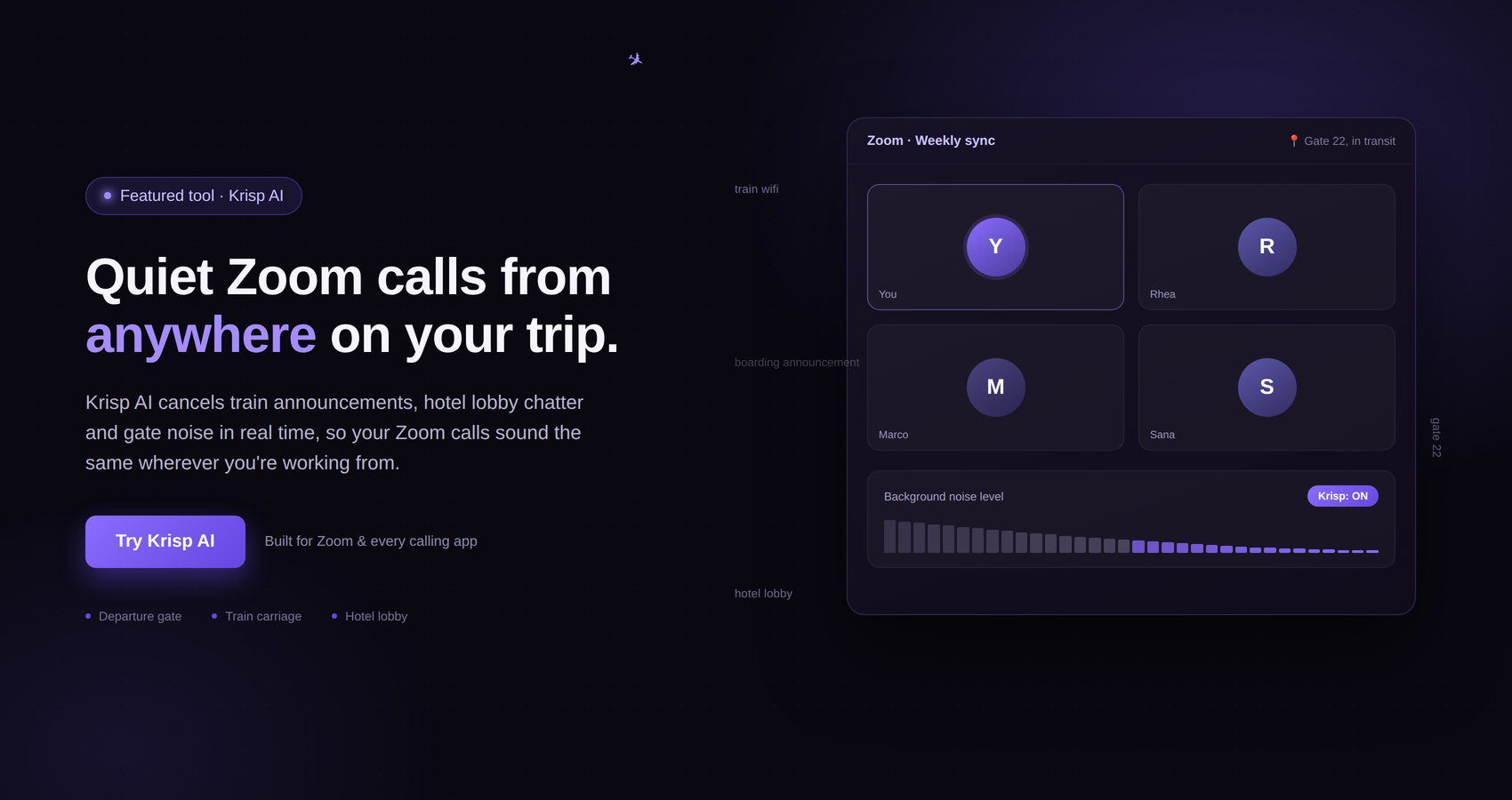
Krisp is a desktop application that provides real-time noise cancellation for online calls. It works by processing audio between your physical microphone or speaker and the communication application.
For someone sitting in a café, the main benefit is straightforward: Krisp can help reduce background noise on the call without requiring you to find a completely silent room.
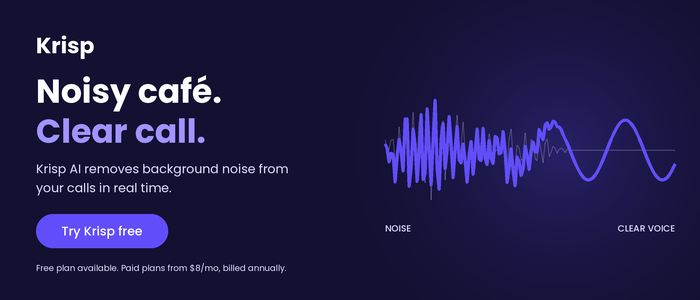
Krisp describes its Noise Cancellation as removing background noise, voices and echoes from calls in real time.
That is useful when the sounds around you are things like conversations, café activity or other environmental noise.
One particularly relevant feature is Background Voice Cancellation. Krisp explains that this feature can cancel background voices while keeping the primary speaker’s voice when using a headset during online calls.
Imagine sitting in a café while two people at the next table are discussing a project. You cannot control their conversation, and asking everyone around you to be quiet obviously is not realistic.
This is exactly the kind of situation where having software-based noise cancellation can be helpful.
It does not mean you can ignore your surroundings completely. It means you have another layer of protection between the café environment and the person listening to your call.
Krisp works through virtual audio devices.
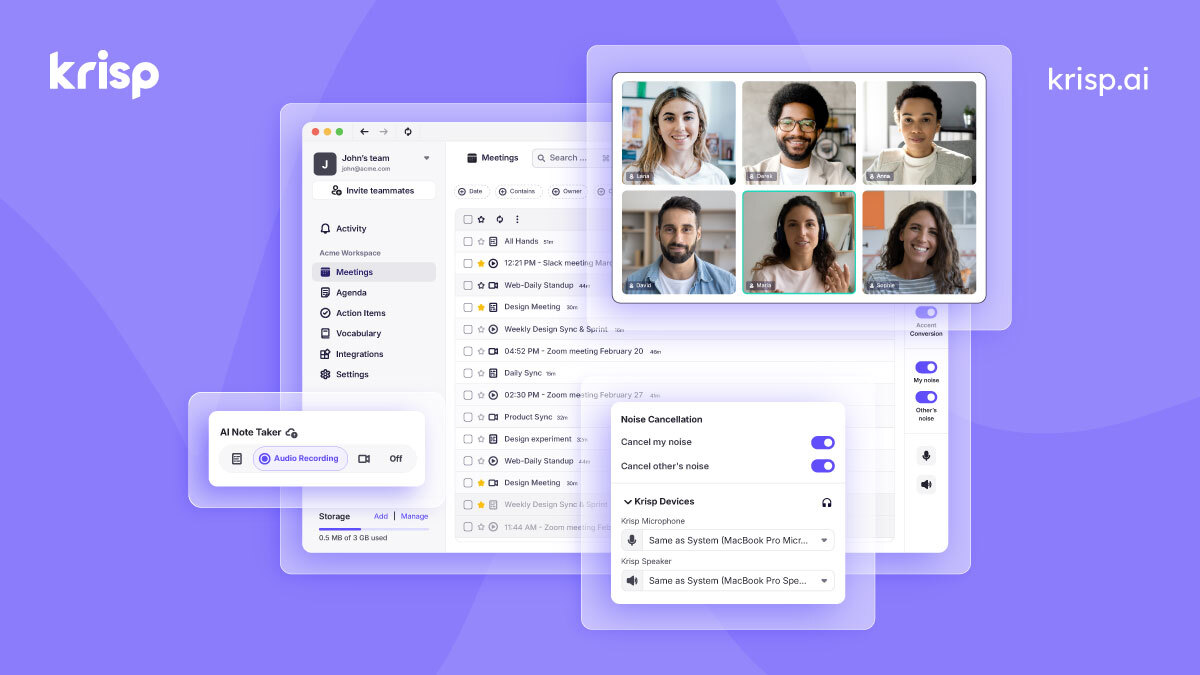
Once Krisp is installed and configured, your calling application can use Krisp Microphone and Krisp Speaker as the audio devices. Krisp’s documentation explains that compatible communication applications need to support virtual devices and provide audio settings where users can select these Krisp devices.
The basic setup is simple.
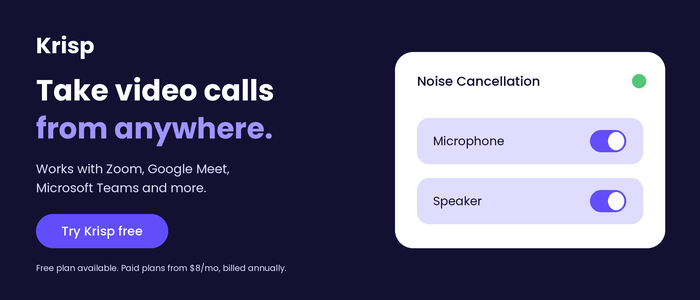
First, open Krisp and select the physical microphone and speaker or headset you want to use. Then turn on the appropriate Noise Cancellation options.
Next, open the calling application and select Krisp Microphone as your microphone. If you want Krisp to process the incoming audio as well, select Krisp Speaker as your speaker.
After that, your call can run through Krisp.
The exact menus depend on the communication application you are using, so it is worth setting everything up before the meeting rather than trying to figure it out while somebody is already waiting for you.
One of the easiest ways to ruin an otherwise good café call is to start troubleshooting five minutes after the meeting was supposed to begin.
Do not wait until the last moment.
Before the meeting, open Krisp and check that your physical microphone and headphones are selected correctly. Then check the settings in your calling application.
Krisp specifically recommends testing Noise Cancellation before joining a call and making sure your setup is configured correctly.
A quick test can answer several important questions:
Can the microphone hear you?
Is your voice loud enough?
Is Krisp Microphone selected in the calling app?
Is Krisp Speaker selected if you want incoming audio processed?
Is the headset connected?
Is the café Wi-Fi stable?
Are other applications using too much of your computer’s processing power?
Taking two or three minutes to check these things can save you a lot of stress later.
It may seem logical to turn on every noise reduction feature you can find.
In practice, that is not necessarily the best approach.
Krisp recommends disabling additional audio processing in the calling application, browser, operating system and headset when using Krisp. According to Krisp, stacking different audio-processing systems can work against the intended result and affect audio quality.
This is particularly important if your video-call application already has its own noise suppression.
For example, Krisp’s Google Meet setup instructions recommend selecting Krisp Microphone and Speaker in Google Meet and turning off Google Meet’s own Noise cancellation so that it does not interfere with Krisp’s processing.
Krisp gives similar guidance for Microsoft Teams, recommending that Teams’ own noise suppression be turned off when using Krisp Noise Cancellation.
The exact settings can change as applications are updated, so always check the current settings in the application you are using.
The general principle is simple: avoid having multiple systems trying to process the same microphone signal at the same time.
If your meetings take place in Google Meet, Krisp can be configured directly through Meet’s audio settings.
Krisp’s setup instructions explain that you can go into Google Meet settings, open Audio and select Krisp Microphone and/or Krisp Speaker. You then open Krisp, choose your physical microphone and speaker, and enable the appropriate Noise Cancellation options.
This can be particularly useful when you are working from a café because you can prepare the configuration before joining the meeting.
One detail worth remembering is that browser behavior can vary. Krisp notes, for example, that some browsers may not allow the speaker to be changed in the same way.
So test your setup before an important meeting rather than assuming everything will automatically work.
Microsoft Teams can also be configured to use Krisp.
Krisp’s instructions recommend selecting Krisp Microphone and Krisp Speaker in Teams’ audio settings. Krisp also recommends turning off Teams’ Noise suppression when using Krisp Noise Cancellation.
If you regularly work from cafés and use Teams for work, it is worth creating a repeatable setup.
For example, you might have:
Laptop
Headset
Krisp running
Krisp Microphone selected in Teams
Krisp Speaker selected in Teams
Teams’ additional noise suppression disabled
Once that setup works, you do not need to reinvent it every time you sit down for a call.
 Speak Normally Instead of Shouting
There is a temptation to speak louder when you are surrounded by café noise.
Try not to.
If your microphone is positioned properly and your audio settings are configured correctly, speak naturally.
Krisp recommends speaking clearly at a natural pace as part of its best-practice guidance for Noise Cancellation.
Speaking loudly can also make the experience uncomfortable for everyone around you. Remember that you are still in a public place.
A good remote-work habit is to speak as though you are in a normal office meeting. Let the microphone and audio processing do their jobs instead of trying to compete with every sound in the café.
Noise cancellation is not only about what other people hear from your microphone.
You also need to hear the people on your call.
Headphones can make that much easier.
If you use your laptop speakers in a busy café, the sound from the meeting may mix with the café environment. It can also potentially be picked up by your microphone, depending on your setup.
Using headphones keeps the conversation closer to your ears and makes it easier to focus.
Krisp supports processing for incoming audio through Krisp Speaker, which can be selected in compatible applications. Its Noise Cancellation is designed to address noise coming from other call participants as well as noise going from you to them.
For a café worker, that two-way approach can be useful.
Noise cancellation cannot fix a bad internet connection.
This is an important distinction.
You could have excellent audio processing and still have a frustrating meeting if the café’s Wi-Fi is unstable.
Before an important call, check the connection.
If the café offers Wi-Fi, find out whether your connection is stable before the meeting. If you have a mobile hotspot available as a backup, keep it ready.
Avoid starting large downloads, cloud backups or other bandwidth-heavy activities immediately before a call.
Krisp’s system requirements documentation also notes that performance can be affected by network stability, CPU, RAM and background tasks.
So a good café video-call setup has two separate parts: reliable internet and reliable audio.
You need both.
Your laptop may already be doing more work than you realize.
You might have dozens of browser tabs open, cloud storage syncing, photo applications running, messaging apps active and several other programs operating in the background.
For a normal browsing session, this may not be a big deal.
During a video call with real-time audio processing, it is worth reducing unnecessary workload.
Krisp’s best-practice guidance recommends closing CPU-heavy applications and processes when possible, including activities such as video rendering, large downloads and excessive browser activity.
Before your call, close whatever you do not need.
You do not need a perfectly clean computer. Just avoid making your laptop work unnecessarily hard while you are asking it to handle video, internet traffic, your meeting application and real-time audio processing simultaneously.

Krisp’s current recommended requirements for its desktop application include macOS 14 Sonoma or higher on Mac, with an Intel Core i5 or Apple silicon chip and at least 8 GB RAM. On Windows, Krisp recommends 64-bit Windows 10 or Windows 11, an Intel Core i5 or AMD Ryzen 5 processor and at least 8 GB RAM.
Krisp also notes that performance can depend on factors such as CPU, RAM, network stability and background tasks.
Linux and ChromeOS are currently not supported by the Krisp desktop application according to Krisp’s system requirements documentation.
If you are a frequent café worker, it is worth checking your computer’s compatibility before depending on Krisp for an important meeting.
Software changes over time.
Krisp recommends using the most recent version of its application for the best experience, including performance, bug fixes and security improvements. Its help documentation also provides an in-app process for checking for updates.
That makes keeping the application updated a sensible part of your preparation.
If you have not used Krisp for several weeks, open it before an important meeting and check whether an update is available.
It is much better to discover an update when you have ten minutes to spare than when your client is already waiting.
A test call is one of the most underrated habits for remote workers.
You do not need to spend half an hour testing everything.
A quick recording or test call can tell you whether your microphone is working, whether your voice sounds clear and whether your setup is processing the café noise as expected.
If possible, test from the same table where you expect to take the actual call.
That matters because the acoustic environment changes from one part of a café to another.
A microphone test from a quiet corner at home does not necessarily tell you how your microphone will behave next to an espresso machine.
Krisp’s best-practice documentation specifically recommends testing Noise Cancellation before joining a call.
This sounds obvious, but it happens all the time.
You walk into a café, see an available table and sit down.
Then you realize ten minutes later that the espresso machine is directly behind you.
Move if you can.
A little physical distance from the loudest noise source can make a big difference.
Krisp can help reduce background noise, but it works with the audio it receives. Krisp’s own guidance emphasizes that Noise Cancellation quality depends on the incoming audio and that the physical setup matters.
Think of noise cancellation as part of your setup rather than a replacement for good positioning.
The quieter and cleaner the signal you provide, the easier it is to have a good conversation.
Not every café is equally suitable for work calls.
Some cafés have loud music, crowded seating and constant activity. Others have quieter corners, larger tables and a more relaxed atmosphere.
If you regularly work remotely, you will probably start developing a shortlist of places where calls are easier.
Look for cafés with:
Reliable Wi-Fi
Comfortable seating
Power outlets
Quieter corners
Good lighting
Enough table space
Reasonable background noise
Seating away from speakers and service areas
You do not need a café specifically marketed as a coworking space.
You simply need an environment that lets you work without constantly fighting the surroundings.
Audio is the biggest challenge in a noisy café, but video matters as well.
If you are attending an important meeting, position your laptop so that your camera faces a relatively clean background.
Avoid having customers constantly walking directly behind you if possible.
Good lighting also helps. If you are sitting with a bright window directly behind you, your face may appear dark on camera. Moving so that the light is in front of you can make a noticeable difference.
The objective is not to create a television studio in the corner of a coffee shop.
You simply want the call to look intentional rather than accidental.
Even with good noise cancellation, muting yourself when you are not speaking is a useful habit.
If you are in a meeting with several people, you do not need your microphone open continuously.
Mute when someone else is presenting. Unmute when you need to contribute.
This gives you another layer of control over unexpected sounds.
Maybe someone suddenly drops a tray. Maybe your coffee arrives. Maybe a chair scrapes across the floor.
Muting removes the need to worry about every little sound.
Krisp can reduce unwanted background noise, but basic meeting etiquette still matters.
Technology can fail.
The Wi-Fi can stop working. Your laptop battery can run low. Your headset can disconnect. An application can suddenly request an update.
For an important call, have a backup.
Keep your phone charged.
Know where your mobile hotspot settings are.
Carry your charging cable.
If the café becomes unexpectedly noisy, know whether there is another nearby location where you could finish the meeting.
This does not mean expecting everything to go wrong.
It means being prepared enough that one small problem does not ruin your entire day.
If you regularly take professional calls from noisy environments, Krisp AI is worth considering as part of your setup.
Its core Noise Cancellation feature is specifically designed for real-time calls, and Krisp says it removes background noise from both sides of a conversation. Background Voice Cancellation is also available for canceling background voices while keeping the primary speaker’s voice when using a headset.
The main advantage is convenience.
You do not have to search for absolute silence every time you have a meeting.
Instead, you can combine a reasonably quiet table, a suitable headset, sensible microphone positioning and Krisp’s real-time audio processing.
That combination makes much more sense than expecting any single tool to solve every problem.
It is also worth remembering that Krisp is not designed to turn a noisy café into a recording studio. Your physical setup, microphone, computer and internet connection still matter. Krisp itself recommends preparing your setup, disabling conflicting audio processing, checking microphone levels and ensuring that your computer meets the necessary requirements.
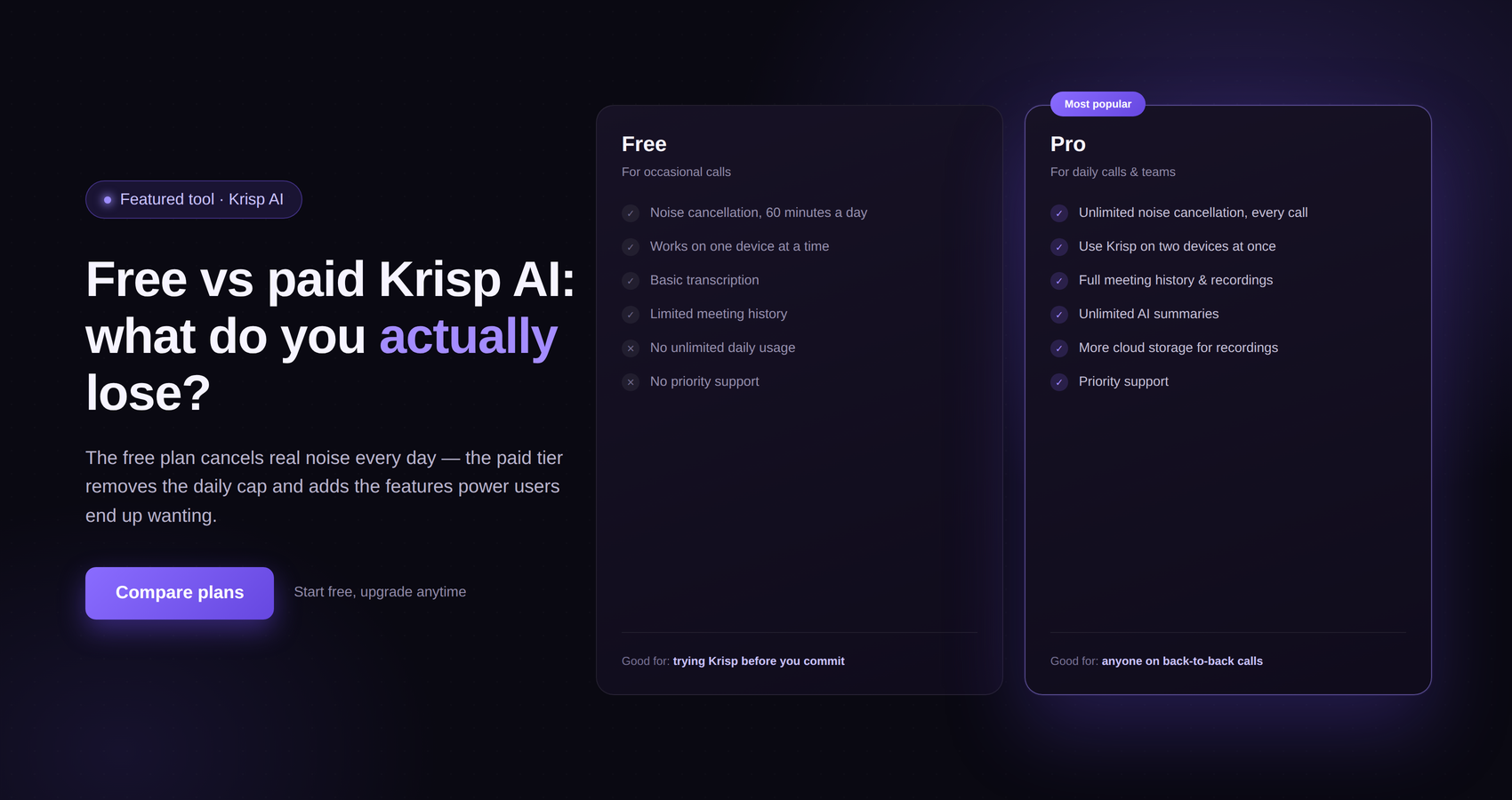
If you are curious about Krisp and do not want to commit immediately, Krisp currently offers a free seven-day trial of its Meeting AI plans. Its current pricing page lists the trial at $0 and says no credit card is required. The page also lists unlimited Noise Cancellation among the trial features.
This can be useful if you want to test the setup before deciding whether it fits your routine.
Try it in a real environment.
Do not only test it in a quiet bedroom.
Take your laptop to a café, connect your normal headset, sit somewhere reasonably busy and make a test call. That will give you a much better idea of whether the setup works for the kind of calls you actually make.
Krisp currently also lists paid Meeting AI plans, with features and pricing varying by plan. Because pricing and included features can change, it is best to check Krisp’s current pricing page before making a purchase decision.
If you work from cafés regularly, you can make the whole process much easier by following the same checklist every time.
Before the call:
Choose a quieter table.
Stay away from the espresso machine and speakers.
Connect your headset.
Open Krisp.
Select your physical microphone and speaker in Krisp.
Turn on the appropriate Noise Cancellation options.
Open your meeting application.
Select Krisp Microphone and Krisp Speaker where appropriate.
Disable conflicting audio processing if recommended for your meeting application.
Check your microphone volume.
Check your internet connection.
Close unnecessary CPU-heavy applications.
Make sure your laptop has enough battery or is connected to power.
Do a short test.
Then join the meeting.
It sounds like a lot when written down, but once you have done it a few times, the process becomes routine.
If someone tells you they can still hear the café, do not panic.
First, check your physical setup.
Is your microphone positioned correctly?
Are you sitting next to a speaker?
Has the café suddenly become much louder?
Is your headset working properly?
Then check that Krisp Microphone is actually selected in your calling application.
If Krisp is selected but the audio still is not behaving as expected, check whether another noise suppression or audio enhancement feature is active in the operating system, headset or calling application. Krisp recommends avoiding additional audio processing that can interfere with its processing.
Also check whether your computer is struggling.
Krisp notes that real-time processing can be affected by CPU limitations, RAM, background tasks and other system factors.
Sometimes the simplest solution is to close several applications and try again.
Working from a café does not have to mean giving up on professional video calls.
You just need to accept that the environment will not be perfectly controlled.
There will be conversations.
There will be cups and plates.
There may be music.
Someone will probably order something loudly at exactly the moment you start speaking.
That is normal.
The goal is not to eliminate every sound in the world. The goal is to create a setup where those sounds are less likely to interfere with your conversation.
This is where Krisp AI can fit into a remote-work routine.
By using real-time Noise Cancellation, Krisp can help reduce background noise during calls. Its Background Voice Cancellation can also help address background conversations, while Krisp’s virtual microphone and speaker allow compatible calling applications to use the processed audio.
Combine that with a sensible physical setup and a good headset, and you have a much more practical way to work from public spaces.

A noisy café does not automatically mean you need to cancel your video call.
With a little preparation, you can create a surprisingly workable remote office almost anywhere.
Start with the basics: choose your table carefully, keep your microphone close enough to capture your voice clearly, use headphones, check your internet connection and close unnecessary applications.
Then add Krisp AI to the setup if you need additional help managing background noise.
Krisp is designed for real-time noise cancellation during online calls, and its software can process both outgoing and incoming audio. Its Background Voice Cancellation feature is particularly relevant for busy environments where conversations are happening around you.
The important thing is not to rely on software alone.
A good café call comes from several small decisions working together.
Find the quieter table.
Use the right microphone.
Keep your headset connected.
Configure Krisp correctly.
Turn off conflicting audio processing.
Test everything before the meeting.
Keep a backup internet option available for important calls.
Once those habits become routine, working from cafés becomes much less stressful.
You can enjoy the change of scenery, get some work done and still take your meetings without constantly apologizing for every sound happening around you.
And for anyone whose work involves frequent video calls while traveling, Krisp AI can be a useful addition to the mobile work toolkit, especially when a completely silent room simply is not available.