
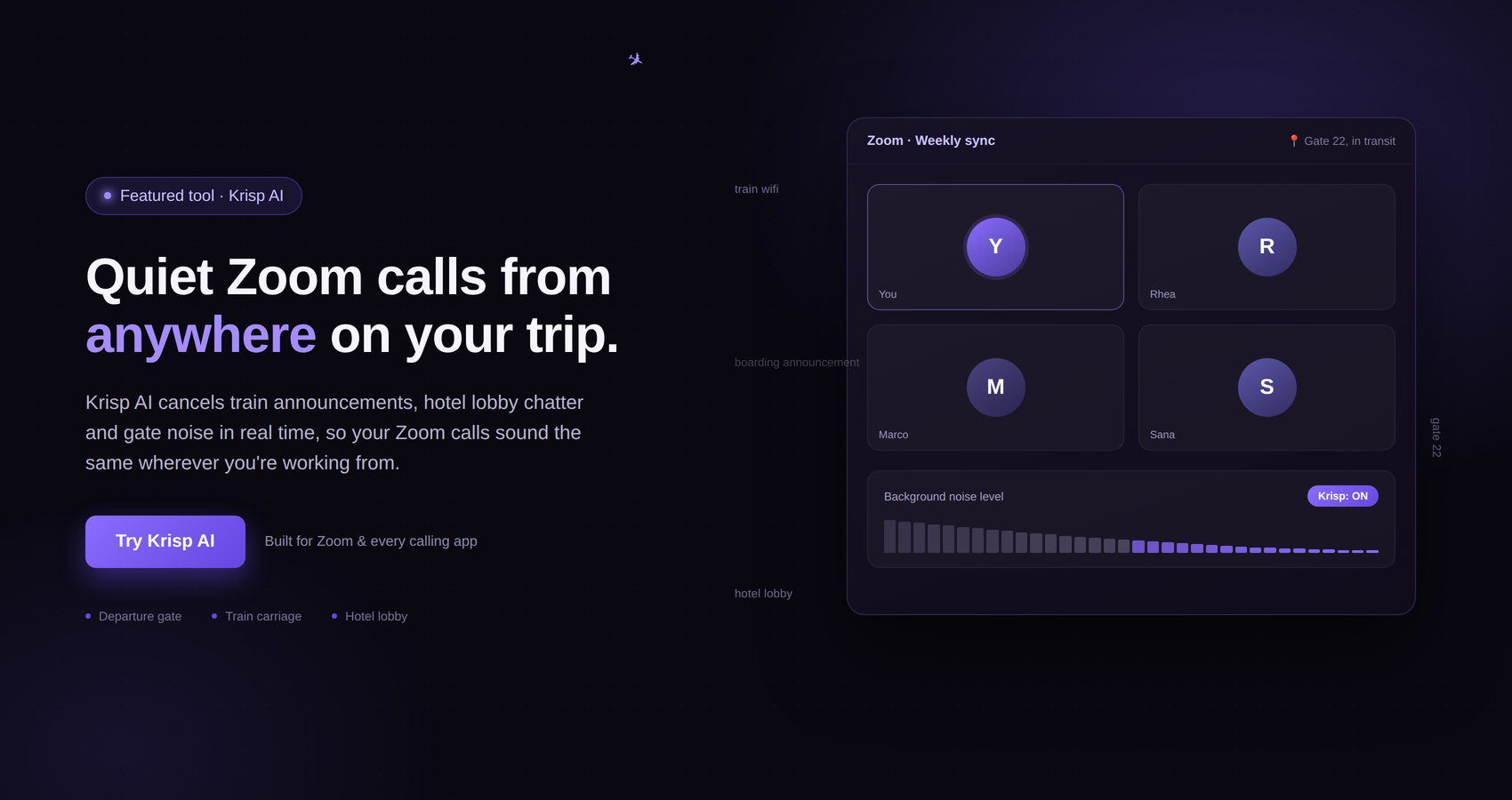


Working while traveling sounds great until you actually have to take an important Zoom call from a crowded airport, a busy café, a hotel lobby, or a room next to a noisy street.
When you are at home or in a regular office, you probably know what your surroundings will sound like. You can close a door, move away from a printer, ask people nearby to keep the noise down, or simply choose a quieter room. Traveling is different. You are constantly dealing with environments that were not designed for work calls.
There might be announcements playing over an airport speaker. Someone could be talking at the next table in a café. A hotel air conditioner might be running in the background. Traffic could be passing outside your window. Housekeeping may be moving carts through the hallway. Even something as simple as typing on your laptop can become surprisingly noticeable when you are trying to speak during a call.
The good news is that you do not necessarily need a perfectly silent room to have a better Zoom conversation. A combination of good positioning, sensible Zoom settings, headphones or a suitable microphone, and software-based noise cancellation can make a significant difference.
One tool worth considering for travelers is Krisp, an AI-powered noise cancellation application that works as an additional audio layer between your physical microphone and communication application. Krisp provides virtual microphone and speaker devices that can be selected in Zoom, allowing it to process outgoing and incoming audio in real time.
Here is how to reduce background noise on Zoom calls when you are traveling, and where Krisp can fit into the setup.
Travel puts you in environments where controlling sound is often difficult.
At home, you might have a dedicated workspace with a door and relatively predictable surroundings. A hotel room, on the other hand, can have people walking through the corridor outside, traffic below the window, an air-conditioning unit nearby, or guests in adjoining rooms.
Cafés present a completely different problem. You have conversations, coffee machines, dishes, music, doors opening and closing, chairs moving across floors, and people walking around. Airports can be even more challenging because announcements and passenger activity are difficult to predict.
The important thing to understand is that your microphone does not know which sounds you consider important. It simply picks up the audio around it.
If you are speaking from a café, for example, your microphone can capture both your voice and the conversation happening at the next table. Without appropriate processing, the person on your Zoom call may hear both.
This is why finding a quieter location is still useful, but it is only one part of the solution.
Before changing any software settings, look at your physical surroundings.
You do not need complete silence. You simply want to reduce the amount of unwanted sound reaching your microphone.
At an airport, look for a quieter seating area away from major passenger traffic. If the airport has a business lounge or another designated quiet area that you are allowed to use, that can be preferable to sitting directly beside a busy departure gate.
In a café, avoid sitting directly beside the entrance, coffee machine, speakers, or a large group. A table against a wall can sometimes be easier to manage than a table in the middle of the room.
In a hotel, close the door and windows if practical. If traffic noise is coming through the window, moving to the other side of the room may help. You can also position yourself away from the air-conditioning unit.
These small decisions matter because noise cancellation works with the audio signal reaching your microphone. Giving the microphone less unwanted sound to begin with can make the overall setup easier to manage.
Microphone placement is one of the simplest things travelers can improve.
If the microphone is several feet away from you, your voice has to travel through more of the surrounding environment before reaching it. The microphone may therefore capture more room sound relative to your voice.
A microphone positioned closer to your mouth can capture your speech more directly.
This does not mean you need an expensive studio microphone. Depending on your setup, a headset microphone or another suitable microphone may be perfectly adequate for a Zoom call.
The key is consistency. Position the microphone so it stays relatively close to your mouth without getting in the way.
If you are using a laptop’s built-in microphone, consider where the laptop is positioned. A laptop sitting directly beside a noisy coffee machine is going to have a harder job than one positioned several feet farther away.
Headphones can make traveling calls easier for two separate reasons.
First, they can help you hear the other participants more clearly when the surrounding environment is noisy. You do not have to increase your laptop speaker volume as much just to hear someone talking.
Second, using a headset microphone can put the microphone closer to your mouth than the microphone built into a laptop.
If your headphones include active noise cancellation, they may also make the surrounding environment quieter for you personally. However, it is important to understand the difference between active noise cancellation and software-based microphone noise cancellation.
Active noise cancellation generally works on the sound reaching your ears. AI-based microphone noise cancellation works on the audio being sent from your microphone to another person. They solve different problems.
That distinction becomes particularly important when you are trying to make your voice easier for other people to hear.
Zoom itself provides background noise suppression options, so you should check your Zoom audio settings before a call.
Zoom has controls for background noise removal, and these can be useful when dealing with everyday distractions such as keyboard sounds or other relatively common background noises.
However, different environments create different challenges. A traveler working from a quiet hotel room may have very different needs from someone taking a call beside a busy airport gate.
If you are using Krisp with Zoom, Krisp’s own documentation recommends selecting the Low background noise removal option in Zoom. Krisp explains that Zoom’s Medium and High suppression levels can affect the voice when used alongside Krisp’s noise cancellation, which is why Low is recommended in that setup.
The important lesson is not to turn every noise filter to maximum and assume that more processing automatically means better audio.
The goal is clear speech that sounds natural.
Krisp is a desktop noise cancellation application designed to reduce unwanted sound during online communication.
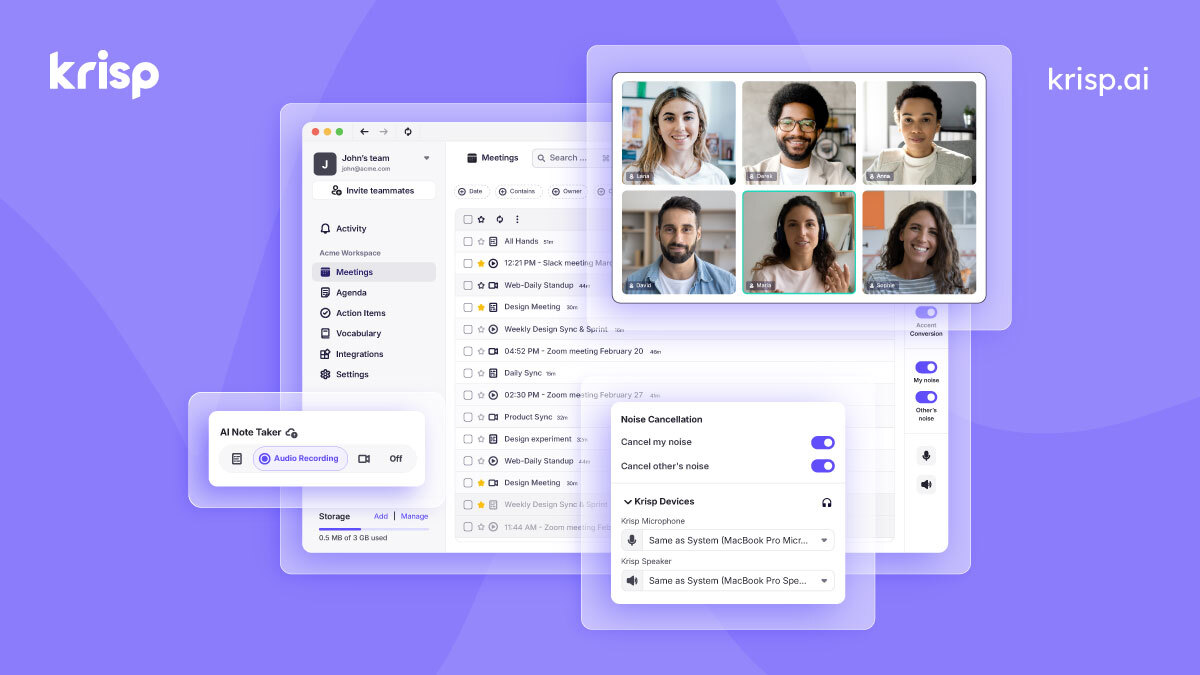
According to Krisp’s documentation, it creates virtual microphone and speaker devices on your computer. You select your physical microphone and speaker inside Krisp, and then choose Krisp Microphone and, if needed, Krisp Speaker in the communication application you are using.
For a traveler, the useful part is that Krisp does not require you to turn your hotel room, café, or airport into a professional recording studio.
Instead, it provides software-based processing between your physical audio devices and the communication application.
Krisp describes its Noise Cancellation as working in real time. It can process outgoing audio from your microphone and incoming audio through its speaker path.
That makes it relevant for people who regularly work from changing locations.
The basic idea is fairly straightforward.
Your physical microphone captures your voice and the sounds around you. Instead of sending that raw microphone signal directly to Zoom, Krisp processes the audio and provides Zoom with a virtual microphone.
Krisp’s documentation explains that Krisp Microphone receives audio from the physical microphone, processes it on the device, and then sends the processed audio to the communication application. Krisp Speaker performs the corresponding processing for audio coming from other participants before it reaches your physical speakers.
In Zoom, you can select Krisp Microphone as your microphone and Krisp Speaker as your speaker.
Krisp’s official Zoom setup instructions recommend opening Zoom’s Settings, going to Audio, and selecting Krisp as the microphone and/or speaker. You then open Krisp, choose the physical microphone and speaker you want to use, and turn on the relevant Noise Cancellation toggles.
Once it is configured, you can join the Zoom meeting normally.
The setup is worth doing before you actually need it.
Start by installing and opening Krisp on your Mac or Windows computer. Krisp’s current product documentation identifies its desktop application as supporting Mac and Windows.
Inside Krisp, select the physical microphone you plan to use.
If you are using a headset, choose that headset’s physical microphone. If you are using your laptop microphone, choose the laptop’s microphone.
Next, select your physical speaker or headphones in Krisp.
After that, open Zoom and go to its audio settings.
Select Krisp Microphone as your microphone. If you also want Krisp to process incoming audio from other participants, select Krisp Speaker as your speaker.
Then return to Krisp and make sure the appropriate Noise Cancellation settings are enabled.
Krisp’s official Zoom instructions specifically recommend using Low for Zoom’s own background noise removal when Krisp Noise Cancellation is being used.
Before joining an important meeting, test the setup.
That last step is easy to overlook.
Do not wait until you are sitting at an airport gate five minutes before an important client call to discover that Zoom is using the wrong microphone.
Open Zoom early.
Check the microphone selection.
Confirm that Krisp Microphone is selected if you are using Krisp.
Check your speaker or headphones.
Then speak normally and listen to how your voice sounds.
If you can test the setup in the actual environment where the meeting will take place, even better. A configuration that sounds fine in a quiet hotel room may behave differently when you move to a crowded café.
Testing also gives you an opportunity to catch simple problems such as a muted microphone, disconnected headphones, or the wrong input device.
Software can help, but physical positioning still matters.
Suppose you are sitting in a café with a loud coffee grinder directly behind you. Moving your table ten feet away may reduce the amount of sound reaching your microphone.
Likewise, if an airport announcement speaker is directly above your seat, moving farther away can help.
Think of noise reduction as several layers.
The first layer is your environment.
The second is your microphone placement.
The third is your headphones or microphone hardware.
The fourth can be software such as Krisp.
The more unnecessary sound you prevent from reaching the microphone in the first place, the easier the overall setup becomes.
Music can be particularly annoying during online meetings.
If you are working from a café, do not choose a table directly underneath a speaker if you have another option.
Background music can be relatively constant, but the problem becomes more complicated when there are also conversations and sudden sounds happening around you.
Similarly, at an airport, try not to sit directly underneath an announcement speaker if you expect to be on a call.
A few minutes spent choosing your seat can save you from repeatedly apologizing for the noise during the meeting.
Hotel rooms can seem quiet until you start a call.
You might hear an air conditioner, a refrigerator, traffic outside, people in the hallway, doors closing, elevators, or guests in neighboring rooms.
Before an important Zoom meeting, listen to the room for a minute.
Is the air conditioner particularly loud?
Is there traffic outside?
Is housekeeping working on your floor?
Is the television on?
You may be able to eliminate some of these sounds yourself.
Close the television. Close the window if outside noise is a problem. Move away from the air-conditioning unit. Close the room door completely.
Then use your software settings to handle the remaining noise.
Café conversations are one of the most difficult situations for anyone working remotely.
The problem is not necessarily that the café is extremely loud. The problem is that human speech is highly noticeable during a conversation.
Your colleague may be able to ignore the sound of an air conditioner after a while, but hearing several people talking around you can make a meeting difficult to follow.
Krisp offers a Background Voice Cancellation feature designed to cancel other nearby human voices while keeping the primary speaker’s voice. Krisp’s documentation says the feature requires an enclosed environment and a compatible headset, and it is activated when the relevant microphone Noise Cancellation setting is enabled.
This is particularly relevant to café environments, although you should test any noise cancellation feature before relying on it for an important meeting.
One useful aspect of Krisp is that its audio processing can work in both directions.
Krisp Microphone is intended to process the sound you send to other participants.
Krisp Speaker can process incoming audio, helping remove unwanted background noise from other participants before you hear it through your physical speakers or headphones.
This can be useful when you are traveling because noisy environments can exist on both ends of a call.
You might be sitting in a café while your colleague is working from a busy office.
With the appropriate Krisp configuration, you can address the audio coming from your environment and, where applicable, the unwanted background noise coming from other participants.
This is an important distinction.
Active noise-cancelling headphones are mainly designed to reduce the sound you hear.
Krisp’s AI-based noise cancellation is designed to process communication audio.
Krisp explains that AI-based noise cancellation works on microphone audio and can remove unwanted sound from what is being sent during communication.
So, if you put on active noise-cancelling headphones in a noisy airport, the headphones can make the airport quieter for you.
That does not automatically mean your colleague will stop hearing the airport.
The microphone still has to capture your voice and send it to Zoom.
This is where software-based microphone noise cancellation can play a different role.
For frequent travelers, the two approaches can therefore complement each other rather than being direct replacements for one another.
Laptop placement matters more than many people realize.
If your laptop is directly beside a coffee machine, the microphone is also likely to be relatively close to that sound source.
If your laptop is sitting beside an open hotel window overlooking a busy road, it may capture considerably more traffic noise.
You do not always need to move yourself.
Sometimes moving the laptop is enough.
Try positioning the computer so the microphone is not pointed toward the loudest source of background noise.
The exact microphone position varies between devices, so test the arrangement before the meeting.
Wireless headphones are convenient for travel, but a wired headset can sometimes be useful as a backup.
Travelers deal with batteries, Bluetooth connections, adapters, and devices switching between audio sources.
If you have an important presentation, interview, client call, or meeting, having a backup audio option can be reassuring.
Your backup does not have to be expensive.
A simple headset that works with your computer can give you another way to communicate if your primary setup stops working.
If you use Krisp, remember that Krisp expects you to select a genuine physical microphone and speaker in its app. Its documentation specifically advises selecting physical devices rather than other virtual microphones when configuring Krisp.
It can be tempting to enable every audio enhancement available.
Zoom has its own noise suppression.
Your headphones may have processing.
Your computer may have audio processing.
Krisp can also process the audio.
But stacking multiple systems does not automatically produce better results.
Krisp’s documentation recommends using Low for Zoom’s background noise removal when Krisp Noise Cancellation is active because higher Zoom suppression levels can interfere with the voice signal.
Krisp also recommends avoiding overlapping audio-processing features in some communication applications.
The practical approach is simple: use the settings recommended for the combination you are using, and test your voice before an important meeting.
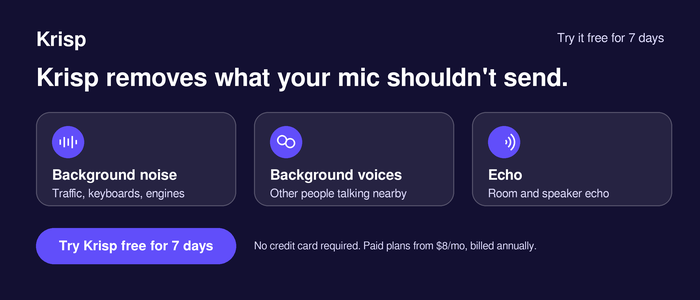
Background noise is only part of the audio problem.
A hotel room with hard surfaces can produce noticeable reflections. A large café or open room can also make your voice sound less direct.
Krisp offers Echo Cancellation as part of its noise cancellation capabilities, and its product information describes it as working in real time to address room echo and acoustic reflections.
However, physical surroundings still matter.
Curtains, carpets, furniture, and other soft surfaces can affect how sound behaves in a room.
You do not need to redesign your hotel room before a meeting. Simply choosing a suitable position and keeping the microphone close can help.
This is one of the easiest tips and it does not require any additional software.
If you are not speaking, mute yourself.
Maybe someone is vacuuming in the hallway. Perhaps a loud announcement is happening at the airport. Maybe a waiter is clearing dishes beside your table.
Muting yourself prevents those sounds from becoming part of the conversation during moments when you are not contributing.
It also gives you another layer of control if you are traveling in an unpredictable environment.
When you are ready to speak, unmute yourself and continue.
Noise cancellation and microphone positioning are useful, but basic meeting etiquette still matters.
Sometimes the simplest solution is transparency.
If you are joining a call from an airport, café, or hotel and the environment is not completely controlled, you can let the participants know at the beginning.
You do not need to make a big announcement.
A quick comment that you are joining from a travel location can set expectations.
That does not replace noise cancellation, but it can make the occasional unavoidable sound less awkward.
If an airport announcement happens in the background despite your preparation, everyone already knows why.
Frequent travelers can make the whole process easier by using the same checklist before every important call.
Check your internet connection.
Check your battery.
Connect your headphones.
Check the microphone.
Open Zoom.
Confirm the microphone selected in Zoom.
If you are using Krisp, confirm that Krisp Microphone is selected.
Check your speaker or headphones.
Open Krisp and confirm Noise Cancellation is enabled.
Test your voice.
Check your surroundings.
Then join the meeting.
The whole process can take only a few minutes once you are familiar with it.
The biggest advantage for a traveler is flexibility.
Your workspace changes constantly.
Monday could be a hotel room.
Tuesday could be a café.
Wednesday could be an airport.
Thursday could be a coworking space.
Friday could be a friend’s apartment.
You cannot expect every location to have the same acoustic conditions.
Krisp provides a software layer that can be used with Zoom by selecting its virtual microphone and speaker devices. That means the audio processing can remain part of your setup even when your physical surroundings change.
You still need to choose your physical devices and configure them correctly, but you do not have to rely entirely on the room being quiet.
That is particularly useful for people who work remotely while moving between destinations.
No software should be treated as a substitute for sensible hardware and positioning in every situation.
A good microphone placed appropriately can make your voice easier to capture.
A microphone positioned far away from you in a very noisy environment creates a harder problem for any processing system.
Krisp is best thought of as another layer in the audio setup.
Start with the basics:
Use an appropriate microphone.
Position it properly.
Reduce the loudest noise sources.
Use headphones when helpful.
Then use noise cancellation software to further process the audio.
This layered approach makes more sense than expecting one tool to solve every possible audio problem.
It is worth separating audio problems from internet problems.
Noise cancellation can affect the audio signal, but it cannot fix an unstable internet connection.
If your Zoom call keeps freezing, dropping, or producing severe delays, moving to a better Wi-Fi connection or using another available connection may be necessary.
Travelers should therefore prepare for both issues.
Before an important meeting, check your connection as well as your audio.
If possible, download anything you need in advance, keep your computer charged, and know where you can move if your current location becomes unsuitable.
A good audio setup cannot compensate for an unreliable connection.
If you travel regularly for work, identify a backup location before you need one.
At an airport, know whether there is a quieter seating area.
At a hotel, know where you could move if your room becomes noisy.
In a city, consider whether there is a nearby coworking space or quiet café where you can take an important meeting.
This sounds obvious, but it can make a huge difference when a meeting suddenly becomes more important than expected.
The goal is not to create a perfect environment.
The goal is to have a Plan B.
If you have never used Krisp before, do not make your first test during an important client meeting.
Install it, connect your physical microphone and speaker, select Krisp Microphone and Krisp Speaker in Zoom, and make a test call.
Krisp provides official setup instructions for Zoom, including the two-sided configuration and the recommended Zoom background noise setting when using Krisp.
Try the setup from somewhere that resembles the environment where you normally work.
If you work from cafés, test it from a café.
If you work from hotel rooms, test it from a hotel room.
That way you understand how your voice sounds before the stakes are high.
Noise cancellation is useful, but it is not a reason to stop thinking about your surroundings.
If you are standing beside a construction site, sitting next to a loud speaker, or trying to take a meeting in the middle of a crowded train station, there may be limits to what any audio setup can accomplish.
The best results usually come from combining multiple small improvements.
Move away from the loudest source.
Use a suitable microphone.
Keep it close to your mouth.
Wear headphones if useful.
Reduce unnecessary room noise.
Configure Zoom correctly.
Use Krisp if it fits your workflow.
Mute yourself when you are not speaking.
Test everything before the meeting.
None of these steps is complicated on its own.
Together, they can make traveling while working considerably easier.
For someone who wants a straightforward setup, the process can look like this.
First, find the quietest practical location.
Second, connect your headset or microphone.
Third, open Krisp and select the physical microphone and speaker you want to use.
Fourth, enable the relevant Noise Cancellation settings in Krisp.
Fifth, open Zoom’s audio settings.
Sixth, select Krisp Microphone for your microphone and Krisp Speaker for your speaker if you want incoming audio processed as well.
Seventh, set Zoom’s background noise removal to Low when following Krisp’s recommended Zoom configuration.
Finally, test your microphone before starting the meeting.
Once you have done this a few times, it becomes a routine rather than a technical task.
Krisp can make particular sense if you regularly work from environments where you cannot control the background noise.
That includes frequent travelers, remote workers, consultants, digital nomads, sales professionals, freelancers, and anyone who regularly joins online meetings from cafés, hotels, airports, coworking spaces, or other shared environments.
It is also relevant if you switch between different communication applications and want a software-based audio layer rather than depending entirely on one application’s built-in processing.
Krisp’s documentation describes it as a desktop application for real-time noise cancellation and explains that it can work by routing audio through its virtual microphone and speaker devices.
Whether it is right for you depends on your equipment, working environment, and the kind of calls you make.
The best travel setup is usually not one expensive piece of equipment.
It is a combination of sensible choices.
Choose your location carefully.
Move away from obvious noise sources.
Keep your microphone close.
Use headphones when appropriate.
Check Zoom’s audio settings.
Avoid unnecessarily aggressive overlapping noise suppression.
Test everything before an important meeting.
And if you frequently find yourself taking calls from noisy environments, consider adding a dedicated noise cancellation solution such as Krisp to your workflow.
Krisp is designed to process audio in real time and provides noise cancellation for incoming and outgoing communication audio. Its current documentation also explains that processing takes place on the local device rather than sending audio data from your machine to Krisp’s servers.
For travelers, that can be a useful approach because the room around you does not have to be perfect every time you open Zoom.
A café will still sound like a café.
An airport will still have announcements.
A hotel will still have people walking through the hallway.
But with a better physical setup and the right software, those sounds do not necessarily have to dominate your next conversation.
Taking professional Zoom calls while traveling is mostly about controlling what you can and preparing for what you cannot.
You cannot always choose a silent room. You cannot stop an airport announcement. You cannot control the people sitting at the next table in a café.
What you can do is choose your seat carefully, position your microphone properly, use headphones, adjust Zoom appropriately, and add noise cancellation software when it makes sense.
Krisp is one option specifically built around this problem. It provides AI-powered noise cancellation for communication and can be configured with Zoom through Krisp Microphone and Krisp Speaker.
For someone who spends a lot of time working on the road, that extra layer can make it easier to take calls without constantly worrying about every sound happening around them.
The goal is not necessarily to make the world completely silent.
It is to make your voice easier to hear, your meetings easier to manage, and your travel work routine a little less stressful.