





There is something slightly stressful about joining an important call from a café or airport.
You may have found a quiet corner, opened your laptop, connected your headphones and checked your internet connection. Then the café grinder starts running. Someone begins talking at the next table. A flight announcement comes over the airport speakers. Suitcases roll across the floor. A child starts crying nearby. Your microphone picks up almost everything.
The person on the other end of the call may hear all of it.
For people who work remotely, travel frequently, attend online meetings or speak with clients from different locations, noisy environments are sometimes unavoidable. You cannot always wait until you reach a quiet office. A flight might be delayed while you are expected to join a meeting, or you might have a client call scheduled between two legs of a journey.
This is where software such as Krisp can make a practical difference.
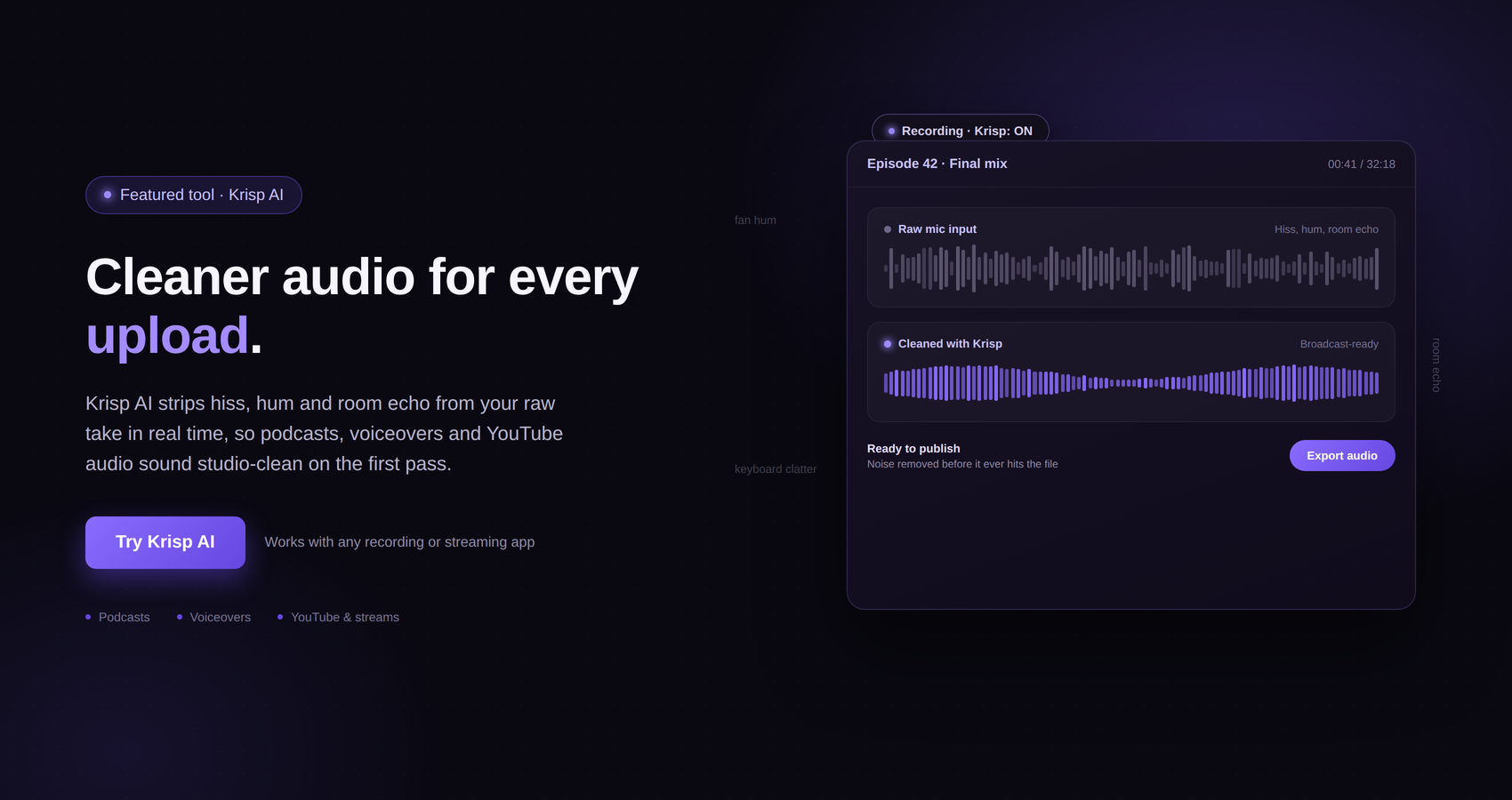
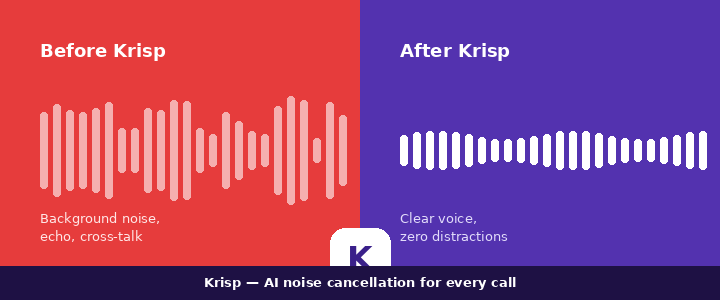
Krisp is a noise-cancellation desktop application designed to remove background noise from online calls in real time. Its noise-cancellation technology works on both sides of a conversation: it can reduce noise coming from your environment before it reaches the other person, while also removing background noise coming from other participants on your side.
That makes Krisp particularly interesting for people who do not always have control over where they take their calls.
A café may be convenient. An airport may be unavoidable. With the right setup, however, you can make those environments much less disruptive to a conversation.
The biggest problem with taking a call from a café or airport is that microphones do not understand context in the same way people do.
You may naturally focus on the person speaking to you and mentally ignore the coffee machine behind you. Your microphone does not automatically know that the coffee machine is irrelevant.
It captures sound.
That can include conversations, announcements, keyboard sounds, cups being placed on tables, doors opening and closing, luggage wheels, traffic and other ambient sounds.
Even relatively quiet background noise can become distracting when it is continuously transmitted throughout a meeting.
There is another problem as well: background voices can be particularly difficult. If several people are speaking around you, the listener may struggle to distinguish your voice from the surrounding conversation.
This is why simply turning up your microphone volume is not always the answer. Increasing microphone sensitivity can sometimes make the surrounding environment more noticeable rather than less.
A better approach is to combine sensible physical positioning with software-based noise cancellation.
That is the role Krisp is designed to play.
Krisp works as an audio-processing layer between your communication application and your microphone and speakers.
Krisp’s official documentation describes it as a desktop noise-cancellation application that removes noise coming from other call participants as well as noise going from your environment toward them. It also offers Background Voice Cancellation, which is designed to remove nearby human voices while keeping the primary speaker’s voice.
The basic idea is straightforward.
Instead of sending every sound captured by your microphone directly into a meeting, Krisp processes the audio in real time and attempts to separate your voice from unwanted background sounds.
On the listening side, Krisp can also process incoming audio so that background noise from other participants is reduced.
Krisp’s current noise-cancellation offering includes background noise removal, voice isolation and echo cancellation. Its official product page specifically describes use in environments including noisy coffee houses and other challenging locations.
For someone sitting in an airport lounge, this can be useful because the goal is not necessarily to make the airport disappear from your own ears. The goal is to prevent the airport from dominating the conversation for everyone else.
Cafés are surprisingly challenging places for professional calls.
They may feel relatively calm when you are sitting there, but there can be several different sound sources around you at once.
There may be:
People having conversations
Coffee grinders
Espresso machines
Background music
Plates and cups
Chairs moving
Doors opening
Cash registers
Staff talking
Traffic outside
Laptop keyboards
Phones ringing
You might be able to concentrate through these sounds yourself. Your client or colleague may not have the same tolerance, especially if every sound is being transmitted through your microphone.
Krisp can help reduce this background noise in real time.
Its noise-cancellation system is specifically designed to remove background noise and voices from calls, while its Background Voice Cancellation capability can target nearby human voices as well.
That distinction is important.
General noise cancellation and background voice cancellation are not necessarily the same thing. A coffee machine is one type of sound. Another person speaking directly behind you is another challenge.
For particularly busy indoor environments, Krisp provides tools intended to address both.
Airports combine many of the problems found in cafés, but often at a much higher level.
There can be constant announcements, people moving around, rolling luggage, conversations, security-area activity, boarding calls and changes in ambient noise.
The environment can also change suddenly.
One minute you might be sitting in a relatively quiet gate area. A few minutes later, an announcement comes over the loudspeaker while dozens of people begin moving around.
This makes airports one of those situations where preparation is valuable.
Krisp’s technology is designed for real-time noise cancellation, meaning you do not have to record the call first and clean it up afterward. The processing happens while the call is taking place. Krisp also states that its desktop application processes audio locally rather than sending audio data from your machine to its servers.
For travelers, that real-time approach is the important part.
You are not trying to create a polished recording. You are trying to have a conversation right now.
Krisp can do a lot of the audio processing, but your physical setup still matters.
One of the easiest mistakes is assuming that software can completely compensate for poor microphone placement.
It cannot.
Krisp’s own headset recommendations point toward using a headset with a dedicated boom microphone because keeping the microphone close to your mouth helps maintain a stronger, more consistent voice signal. Krisp also recommends USB connectivity for a stable, low-latency audio signal when aiming for the most reliable Voice Isolation results.
You do not necessarily need to buy new equipment just to use Krisp, but microphone placement is worth considering.
If your microphone is close to your mouth, your voice is more prominent relative to the surrounding environment.
If it is several inches away, your microphone may need to capture more of the surrounding room simply to hear you clearly.
So, before a major call, consider where the microphone is positioned.
Then consider where you are sitting.
A seat away from a loudspeaker, coffee grinder, entrance or heavily trafficked walkway is preferable to sitting directly beside one.
Krisp can reduce unwanted noise, but avoiding unnecessary noise in the first place gives the software an easier job.
Your audio chain matters.
Krisp recommends that users allow Krisp to handle the audio processing rather than stacking several different noise-processing systems on top of one another. Its current guidance recommends disabling built-in noise cancellation, noise suppression, echo cancellation and other audio enhancements in the calling application when using Krisp. It also recommends disabling similar processing on the headset where applicable.
This is worth paying attention to.
Many communication platforms and headphones already include their own audio-processing features. Running several systems simultaneously can produce unpredictable results.
If Krisp is handling noise cancellation, give it a clean audio signal whenever possible.
A practical setup is therefore:
Your voice → microphone → Krisp processing → calling application.
For listening, the corresponding processed output can help reduce unwanted noise coming from other participants.
The exact settings available can depend on your Krisp plan, application version, device and calling setup, so it is sensible to test everything before an important meeting.
Getting ready does not need to be complicated.
Krisp’s official setup instructions explain that you install the application on Mac or Windows and then select Krisp Microphone as the microphone input and Krisp Speaker as the speaker output in your conferencing application.
A simple preparation routine can look like this.
First, install Krisp and sign in.
Next, connect your headset or microphone.
Open your preferred meeting or calling application.
Select Krisp Microphone as the input device.
Select Krisp Speaker as the output device when you want Krisp to process incoming audio as well.
Then open Krisp and configure the relevant noise-cancellation settings.
Before an important meeting, make a short test call or use the available testing functionality.
This is much better than discovering a configuration problem when your client is already waiting.
One small habit can save you a lot of embarrassment.
Do not wait until the airport announcement begins before checking your settings.
Turn on the appropriate noise-cancellation features before joining the call.
Krisp is designed to work in real time and automatically apply the selected audio settings when the call starts.
That means your goal should be to have everything ready before you click “Join.”
This is especially useful when you are traveling.
You might have only a few minutes before boarding. You may be dealing with a weak airport table, limited space and people moving around you.
The less you need to troubleshoot at the last minute, the better.
Café environments present a particular challenge because the unwanted sounds are not always mechanical.
Sometimes the biggest problem is another person talking.
Krisp’s Background Voice Cancellation is designed to remove nearby human voices while keeping the primary speaker’s voice. According to Krisp’s help documentation, the feature is intended for enclosed environments such as offices, meeting rooms, indoor cafés and homes, and requires a compatible headset.
That makes it especially relevant to the classic café scenario.
Imagine that you are sitting at a table while two people behind you are discussing their weekend plans.
Without voice isolation, their conversation may become part of your microphone’s audio.
With the appropriate Krisp feature enabled, the system is designed to identify those nearby voices as background voices and remove them while preserving your voice.
There is an important practical point here: this feature is designed for enclosed areas and requires a headset. Krisp’s documentation specifically notes that Background Voice Cancellation is not intended for open-air environments.
So if you are sitting outdoors at an airport terrace, for example, do not assume the feature will work in exactly the same way as it does inside a café.
A quick test is one of the best things you can do.
Krisp provides a noise-cancellation testing option, and its Background Voice Cancellation documentation recommends testing the feature before the actual call. One suggested test is to have another person speak in the background and check whether that voice is filtered appropriately.
You can also make a short recording or test call to yourself.
Listen carefully.
Ask yourself:
Can I hear my own voice clearly?
Is the background still overpowering?
Does my voice sound natural?
Is the microphone positioned correctly?
Are two different noise-cancellation systems running simultaneously?
Are the correct Krisp microphone and speaker devices selected?
This takes only a few minutes.
It is far easier than discovering during a client presentation that your microphone is still set to the laptop’s built-in microphone.
This is one of the simplest improvements you can make.
A microphone should not have to work unnecessarily hard to capture your voice.
A dedicated boom microphone placed close to your mouth gives Krisp a stronger voice signal to work with. Krisp’s current hardware recommendations specifically highlight dedicated boom microphones for this reason.
That does not mean you need an expensive professional microphone.
For a traveler, a practical headset can be more useful than a large desktop microphone because it is easier to carry and position.
If you already have a headset with a good microphone, try positioning it consistently rather than moving it around during a call.
Your voice should remain at a relatively consistent distance from the microphone.
Noise cancellation is not an excuse to sit beside the espresso machine.
Even though Krisp is designed to remove background noise, reducing the amount of noise reaching the microphone in the first place remains sensible.
Look for a table away from:
The coffee counter.
The entrance.
The kitchen.
The speakers.
Large groups.
High-traffic walkways.
Outdoor traffic.
If the café has a quieter upstairs area, that may be preferable.
Think of Krisp as an additional layer of protection rather than your only protection.
The best setup combines location, microphone positioning and software.
The same principle works in airports.
If you have a call scheduled, look for a quieter corner rather than sitting directly underneath a departure board speaker.
Airport lounges can sometimes provide better conditions than the main terminal, although this depends on the specific location and time of day.
If there is a designated workspace or quieter seating area, use it.
If you cannot avoid the terminal, face away from busy pedestrian traffic and keep your microphone close.
Then let Krisp handle the background audio processing.
Krisp’s own materials specifically discuss noise cancellation in challenging environments, including airports in the context of its broader voice-clarity technology.
Noise cancellation cannot fix an unstable internet connection.
This is an important distinction.
Your call has two separate problems to consider.
The first is audio quality.
The second is network quality.
Krisp addresses the audio side.
If the airport Wi-Fi is overloaded and your connection repeatedly drops, no noise-cancellation application can prevent your call from freezing.
So travelers should think about both.
Before an important call, check the connection if possible.
Keep a backup connection available when the meeting is genuinely important.
If your phone has a suitable mobile-data connection, it can sometimes provide a useful backup.
The goal is to eliminate as many potential failure points as possible.
Krisp has expanded beyond basic noise cancellation.
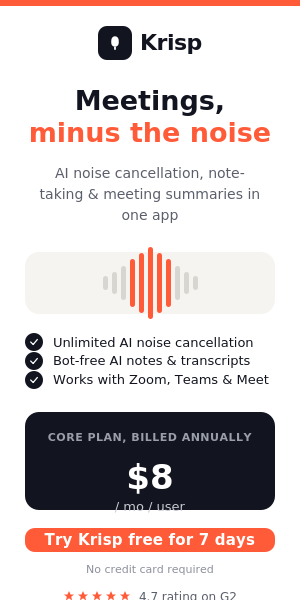
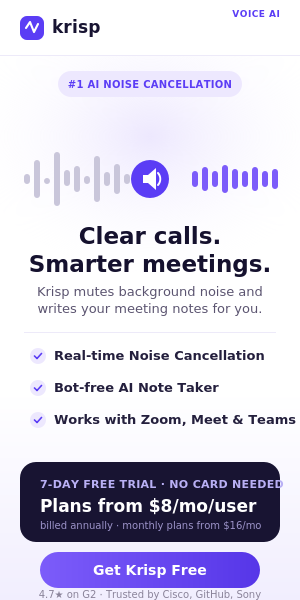
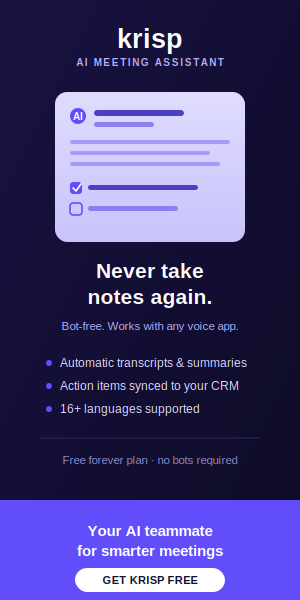
Its current Meeting AI offering includes features such as AI-generated meeting notes, transcription, recording and AI chat, depending on the plan. The current Krisp pricing page also lists unlimited noise cancellation across its Core and Advanced Meeting AI plans, while the free trial provides access to premium features for seven days.
That can make Krisp useful even after the noisy environment is no longer your biggest concern.
For example, suppose you have a 45-minute client meeting while traveling.
You use Krisp to improve the call audio.
If your plan supports the relevant Meeting AI features, you can also use transcription and meeting notes to help capture what was discussed.
This can be particularly useful for travelers because travel days often involve interruptions, changing schedules and limited time for manually reviewing meeting notes.
Instead of treating Krisp only as a noise-cancellation utility, it can be viewed as a broader meeting-audio tool.
Noise is not the only thing that can make a call sound bad.
Echo can also make speech difficult to understand.
Krisp includes echo cancellation as part of its audio features, and its official noise-cancellation page describes echo cancellation as a way of reducing room echo and acoustic reflections in real time.
This can be helpful in spaces where sound reflects from hard surfaces.
Airports are full of hard surfaces.
Cafés can also have glass, concrete, tile and other reflective surfaces.
Those materials can contribute to an echo-like quality in calls.
Again, the goal is not to assume Krisp can solve every acoustic problem. Rather, it gives you another layer of audio processing designed to improve the clarity of a live conversation.
Sometimes your environment changes after the call begins.
Maybe a large group arrives.
Maybe the coffee grinder starts.
Maybe music becomes louder.
Maybe construction begins outside.
Do not panic.
First, check your Krisp settings.
Make sure the correct microphone is still selected.
Keep the microphone close to your mouth.
If appropriate, use Background Voice Cancellation.
If the environment becomes genuinely overwhelming, move to another location if you can.
You can also tell the other person briefly that you are in a public location.
There is nothing unprofessional about saying, “I’m traveling today, so there may be some background noise.”
What matters is that you have taken reasonable steps to control it.
Airport announcements are one of the trickier situations because they are often loud, sudden and speech-based.
Krisp’s noise-cancellation technology is designed to reduce unwanted background sounds, while Background Voice Cancellation specifically targets nearby human voices.
Still, you should not depend entirely on software.
If an important announcement is taking place directly above your seat, moving away from the loudspeaker can help.
If you are waiting for your boarding call and need to monitor announcements, remember that aggressively filtering your own environment has a trade-off: you may want to keep your own ears open to what is happening around you.
This is one reason noise cancellation should be used thoughtfully.
You want the person on your call to hear you clearly without completely disconnecting yourself from your surroundings.
Travel equipment has a tendency to multiply.
Laptop.
Phone.
Power bank.
Chargers.
Adapters.
Headphones.
Mouse.
Keyboard.
Microphone.
The more devices you bring, the more opportunities there are for something to fail.
Krisp can simplify the audio side because it is software rather than another physical device.
You can use it with the microphone and headset you already have, subject to compatibility and the specific features you want to use.
For the most reliable Voice Isolation results, Krisp recommends a wired USB headset with a boom microphone and minimal onboard processing.
That recommendation is worth remembering if you frequently work from airports and cafés.
A compact headset that you already know works well can become part of your standard travel kit.
This is an easy mistake to make.
Your laptop may have noise reduction.
Your meeting application may have noise suppression.
Your headset may have its own audio processing.
Then Krisp is added on top.
The result is not necessarily better.
Krisp’s current guidance recommends disabling built-in noise cancellation, noise suppression, echo cancellation and other audio enhancements in the calling application when using Krisp. It similarly recommends turning off headset processing where possible because processing that happens before Krisp cannot be corrected afterward.
So if you decide to use Krisp as your main audio-processing layer, configure the rest of your setup accordingly.
A simpler audio chain is generally easier to troubleshoot.
The benefits are not limited to business meetings.
A traveler might use Krisp for a job interview from an airport.
A freelancer might use it for a client presentation from a café.
A remote employee might use it for a team meeting while between destinations.
A consultant might need to speak with a customer while traveling.
A student might have an online class while away from home.
In all of these situations, the basic problem is the same.
You cannot completely control your environment.
Krisp is useful precisely because it is designed to process audio in real time rather than requiring a perfectly controlled room.
If you frequently work from cafés, create a routine.
Before the call, find the quietest practical table.
Connect your headset.
Open Krisp.
Select the appropriate microphone and speaker.
Check noise cancellation.
If you are using Background Voice Cancellation, make sure your environment and headset meet its requirements.
Run a quick test.
Open your meeting application.
Confirm that the application is using Krisp Microphone rather than the laptop’s default microphone.
Then join the meeting.
This routine may sound excessive for a five-minute call, but it becomes almost automatic after you have done it several times.
For important meetings, it is worth the extra minute.
The airport version is slightly different.
First, check your flight status and boarding situation so you are not surprised by a last-minute change.
Find a reasonably quiet seating area.
Keep your headset and laptop charged.
Connect your headset.
Open Krisp.
Select Krisp Microphone and Krisp Speaker where appropriate.
Test your audio.
Join the call.
Keep an eye on your surroundings.
If boarding begins during the meeting, mute yourself when you are not speaking and listen for relevant announcements.
This gives you a better balance between participating in the call and remaining aware of what is happening around you.
For someone who rarely makes calls outside a quiet room, Krisp may not be essential.
For someone who regularly works from cafés, airports, hotels, coworking spaces or other unpredictable environments, it becomes more compelling.
The value is not simply that Krisp removes noise.
The bigger benefit is predictability.
You cannot control when an airport announcement happens.
You cannot control who sits next to you in a café.
You cannot control when someone nearby starts a conversation.
But you can control your audio setup.
Krisp gives you a tool specifically designed to reduce those unwanted sounds in real time.
That can make traveling while working feel considerably less stressful.
Krisp currently offers a seven-day free trial that provides access to premium features without requiring a credit card, according to its official pricing page. Its current Core plan is listed at $16 per user per month when billed monthly or $8 per user per month on the annual pricing shown on the page. The Advanced plan is listed at $30 per user per month monthly or $15 per user per month on annual billing.
Pricing and plan features can change, so it is always worth checking Krisp’s official pricing page before making a purchase.
For someone who is unsure whether noise cancellation will make a meaningful difference, trying the available trial is a sensible approach.
Take a few calls from your normal noisy environments.
Try it from a café.
Try it while traveling.
Ask your regular colleagues whether they notice an improvement.
That is a more useful test than simply reading a list of features.
The whole point of noise cancellation is simple: your voice should be the important sound.
When someone is listening to you explain a project, negotiate a contract, conduct an interview or participate in a meeting, they should not have to concentrate on separating your words from a coffee grinder or airport announcement.
Krisp’s technology is built around that problem.
Its noise-cancellation tools are designed to remove background noise in real time, while Voice Isolation and Background Voice Cancellation can address unwanted voices in supported setups.
The result you are aiming for is not necessarily silence.
It is clarity.
That is an important difference.
Technology works best when combined with sensible habits.
Mute yourself when you are not speaking if the environment is particularly unpredictable.
Avoid eating directly beside the microphone.
Do not place your microphone next to your laptop’s ventilation area.
Keep your headset microphone positioned consistently.
Avoid sitting beside a loudspeaker.
Use headphones rather than relying on open laptop speakers when practical.
Test the setup before important calls.
And if the environment becomes completely unsuitable, move.
Krisp is a powerful part of the solution, but it should not be treated as permission to ignore basic audio etiquette.
Remote work has changed the idea of where a workplace can be.
A workplace might be a home office on Monday, a hotel room on Tuesday, an airport lounge on Wednesday and a café on Thursday.
That flexibility is one of the best parts of modern work.
It also creates a new problem: your surroundings are no longer consistent.
Your audio setup therefore needs to be flexible as well.
This is where Krisp fits particularly well.
Rather than expecting every location to become silent, you can use real-time audio processing to reduce the sounds that interfere with your conversation.
Krisp’s current product offering also goes beyond noise cancellation, with meeting transcription, AI notes, recordings and other AI meeting capabilities available depending on the plan.
That makes the platform relevant to people who want more than just a quieter microphone.
Taking a professional call from a café or airport does not have to mean apologizing for background noise every few minutes.
You can improve the experience with a combination of simple habits and the right technology.
Choose a sensible location.
Use a good headset.
Keep the microphone close to your mouth.
Avoid stacking multiple noise-processing systems.
Check your internet connection.
Test your audio before an important meeting.
And, most importantly, use a noise-cancellation solution designed for live communication.
Krisp is built specifically around this challenge. Its desktop application provides real-time noise cancellation for online calls, with features designed to reduce background noise, unwanted voices and echo.
For travelers, the appeal is easy to understand.
You do not need to wait until you find a perfectly silent room before speaking with a client or joining a meeting. If you have a suitable headset, a reasonably workable location and Krisp configured correctly, you have another layer of protection against the unpredictable sounds around you.
And that can be the difference between a call where everyone is asking, “Can you repeat that?” and a call where the conversation simply flows.
If noisy cafés, busy terminals and constantly changing work locations are part of your routine, Krisp’s official website is a good place to explore the current noise-cancellation and meeting features available for your setup.